Dynamic Data Tags
Use dynamic data tags to display recurring event information in Bricks Builder.
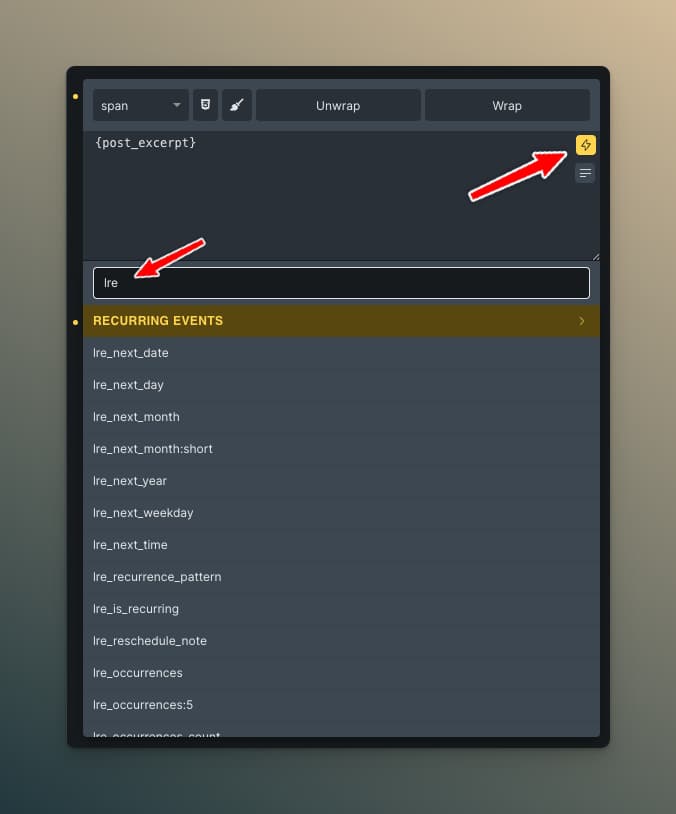
Accessing Dynamic Tags
In any Bricks text element or dynamic field:
- Click the dynamic data icon (⚡ or )
- Look for the Recurring Events group
- Select your desired tag
Available Tags
Date Tags
| Tag | Output | Example |
|---|---|---|
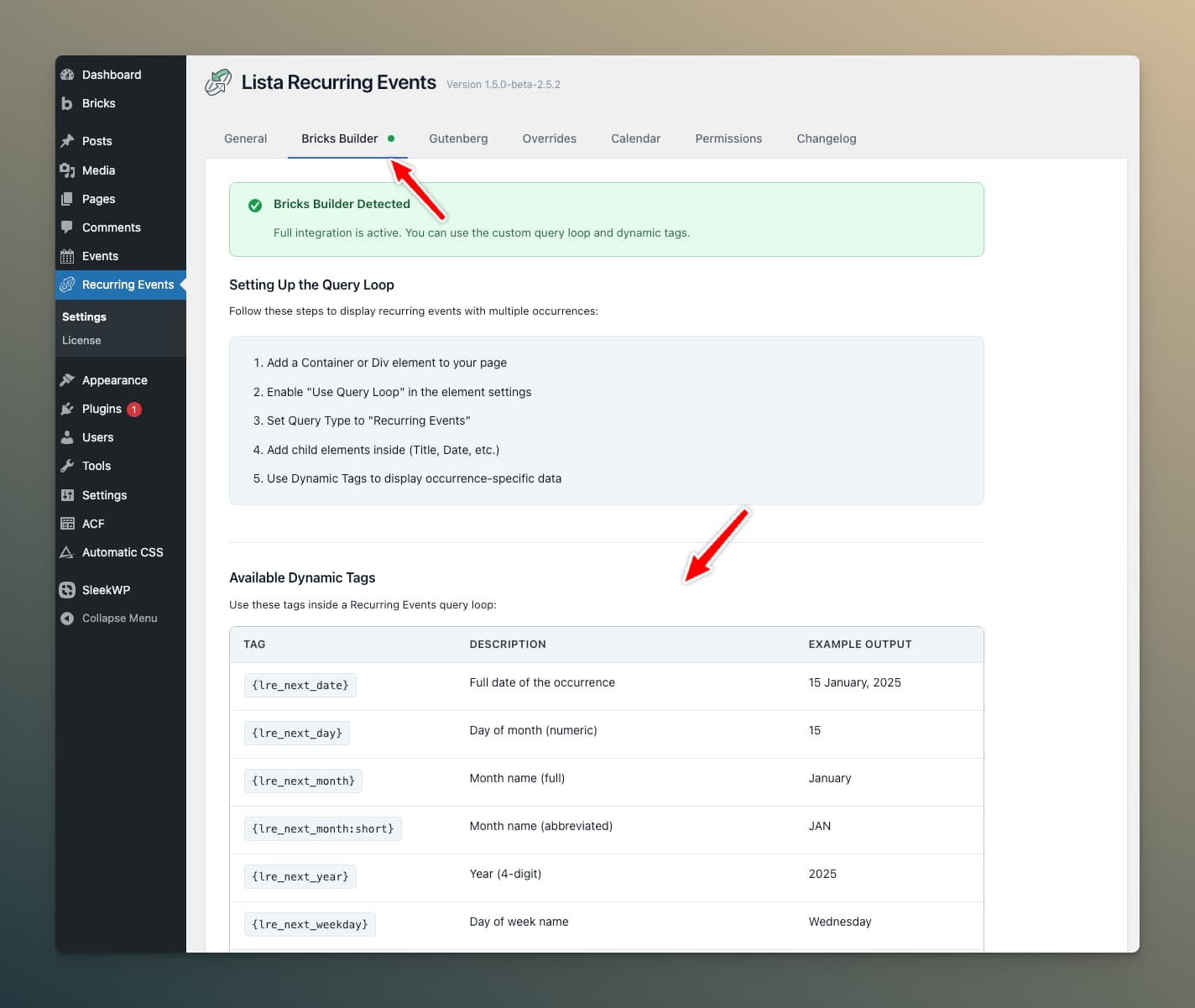
{lre_next_date} | Full formatted date | "31 January, 2026" |
{lre_next_day} | Day number | "31" |
{lre_next_month} | Month name | "January" |
{lre_next_year} | Year | "2026" |
{lre_next_weekday} | Weekday name | "Saturday" |
{lre_next_time} | Time | "2:00 pm" |
Pattern Tags
| Tag | Output | Example |
|---|---|---|
{lre_recurrence_pattern} | Human-readable pattern | "Second Tuesday of every month" |
{lre_is_recurring} | Recurrence status | "1" (yes) or "0" (no) |
Occurrence List Tags
| Tag | Output | Example |
|---|---|---|
{lre_occurrences} | All occurrences (comma-separated) | "Jan 15, Jan 22, Jan 29" |
{lre_occurrences:5} | First 5 occurrences | "Jan 15, Jan 22, Jan 29, Feb 5, Feb 12" |
{lre_occurrences_count} | Total count | "12" |
Field Override Tags
| Tag | Output |
|---|---|
{lre_field:field_name} | Override value or default |
{lre_reschedule_note} | Reschedule note for current occurrence |
Status & Label Tags
| Tag | Output | Example |
|-----|--------|---------| |
| {lre_event_status} | Human-readable status | "Cancelled" |
| {lre_event_status_label} | Status formatted for display | "Cancelled" |
| {lre_event_label} | Custom display label | "Sold Out" |
| {lre_event_color} | Category colour hex code | "#e74c3c" |
These tags can also be used in Bricks conditions to conditionally show or hide elements. For example, show a red badge only when {lre_event_status} equals cancelled.
The {lre_event_color} tag outputs the hex colour assigned to the event (either a per-event override or inherited from the event's category). Use it in dynamic CSS to style elements based on the event's colour — for example, setting a border or background colour dynamically.
Countdown Tag
| Tag | Output | Example |
|---|---|---|
{lre_countdown} | Contextual time label | "Today at 2:00 pm" |
Displays a smart label based on proximity to the occurrence. See Countdown & Relative Time for all display modes.
Using Tags in Elements
In Headings
{post_title} - {lre_next_date}
Output: "Weekly Yoga Class - 15 January, 2026"
In Text Elements
Create a styled date display:
📅 {lre_next_weekday}, {lre_next_month} {lre_next_day}
🕐 {lre_next_time}
In Rich Text
Mix dynamic tags with static content:
Join us for this event on {lre_next_date} at {lre_next_time}.
This event repeats {lre_recurrence_pattern}.
Conditional Display
Use {lre_is_recurring} for conditional elements:
Show Only for Recurring Events
- Add a Div containing your recurrence info
- Set condition:
{lre_is_recurring}equals "1"
Show Only for One-Time Events
- Add a Div with "One-Time Event" badge
- Set condition:
{lre_is_recurring}equals "0"
Date Formatting
The {lre_next_date} tag uses your configured format from plugin settings. To use a different format per-instance, use shortcodes instead:
[lre_next_date format="l, F j, Y"]
Override Fields
To display fields with override support:
Location: {lre_field:event_location}
This displays:
- The override value if set for the current occurrence
- The default field value otherwise
Featured Image Overrides
Featured images with overrides work automatically with Bricks' native {featured_image} tag. No special syntax needed—if an override exists for the current occurrence, it displays automatically.
Tags in Query Loops
Inside a Recurring Events query loop, all tags automatically use the correct occurrence context. The plugin handles this internally—you simply use the tags as normal.
Example Query Loop Card
Container (Query Loop)
├── Image: {featured_image}
├── Heading: {post_title}
├── Div.date-box
│   ├── Span.day: {lre_next_day}
│   ├── Span.month: {lre_next_month}
│   └── Span.year: {lre_next_year}
├── Text: {lre_next_time}
├── Text: {lre_field:event_location}
└── Button: View Details → {post_url}
Tags Outside Query Loops
On single event pages, tags require occurrence context via URL parameter:
yoursite.com/event/yoga-class/?lre_date=2026-01-15
When accessed with this parameter, tags display data for that specific occurrence.
Without the parameter, tags show the next upcoming occurrence.
Copying Tags
All tags can be copied from the Settings page:
- Go to Recurring Events → Settings
- Click the Dynamic Tags tab
- Click any tag to copy it to clipboard