Filter Elements
Add AJAX-powered filtering to your event listings with custom Bricks elements.
Overview
Lista Recurring Events provides dedicated filter elements for Bricks Builder:
- Date Filter — Filter by preset date ranges
- Date Range Filter — Custom date picker
- Taxonomy Filter — Filter by category/tag
- Search Filter — Text search
- Event Type Filter — Recurring vs one-time
- Reset Filters — Clear all filters
All filters work via AJAX—no page reload required.
Adding Filter Elements
Filter elements appear in the Bricks elements panel under the LRE category:
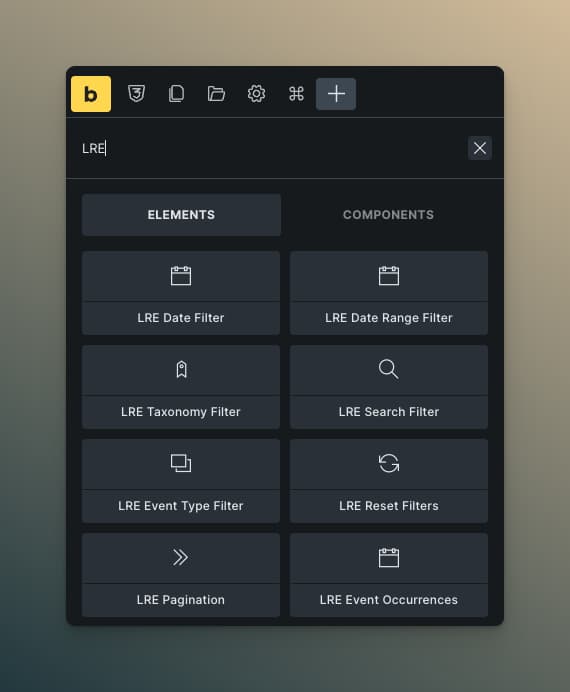
Connecting Filters to Query Loops
Each filter element has a Target Query Loop setting:
- First, create your query loop container
- Add filter elements to your page
- In each filter's settings, select your query loop from the dropdown
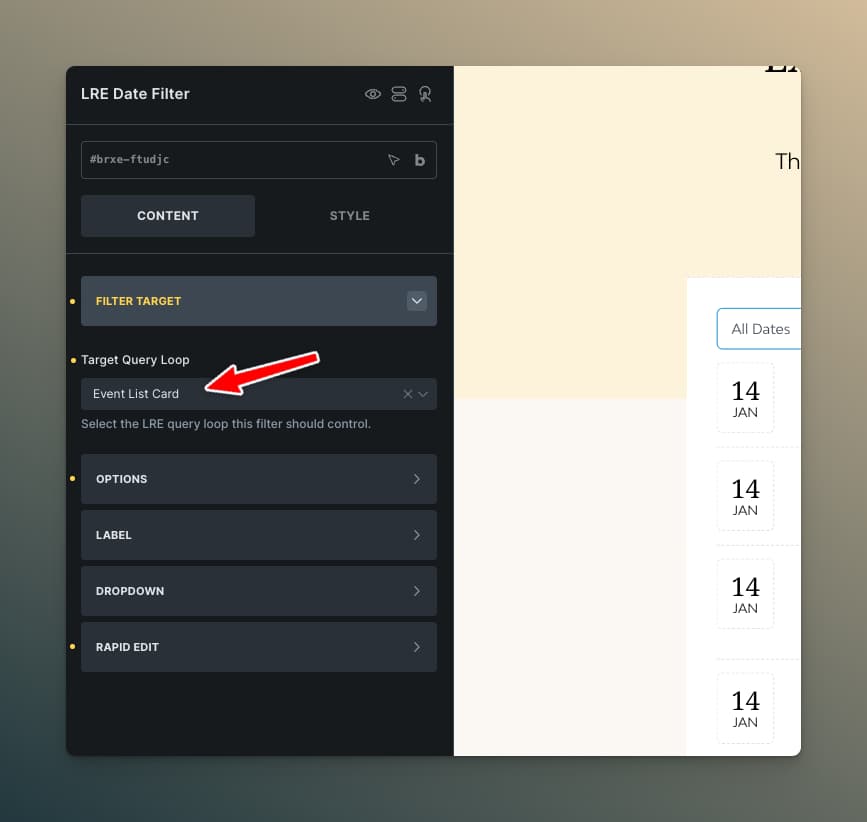
The dropdown shows all Recurring Events query loops on the page by their element ID or label.
Date Filter Element
Filter events by preset date ranges.
Settings
| Setting | Description |
|---|---|
| Display Style | Buttons, Pills, or Dropdown |
| Date Options | Which presets to show |
| Show "All" Option | Include an "All Dates" choice |
Available Presets
- Today
- Tomorrow
- This Week
- Next Week
- This Month
- Next Month
- This Year
Styling
Full control over:
- Button/pill appearance
- Active state colors
- Spacing and typography
- Dropdown styling
Date Range Filter Element
Let users pick custom start and end dates.
Settings
| Setting | Description |
|---|---|
| Start Label | Label for from-date field |
| End Label | Label for to-date field |
| Date Format | Display format in picker |
| Apply Button | Show apply button or auto-filter |
Features
- Powered by Flatpickr date picker
- Respects WordPress locale
- Mobile-friendly interface
Taxonomy Filter Element
Filter by categories, tags, or custom taxonomies.
Settings
| Setting | Description |
|---|---|
| Taxonomy | Which taxonomy to filter |
| Display Style | Buttons, Pills, Dropdown, Checkboxes, or Radio |
| Selection Mode | Single or Multiple |
| Show "All" Option | Include "All" choice |
| Show Counts | Display event count per term |
| Include/Exclude Terms | Limit which terms appear |
Styling
- Term button/checkbox appearance
- Active state styling
- Count badge styling
- Gap and layout controls
Search Filter Element
Free-text search across events.
Settings
| Setting | Description |
|---|---|
| Placeholder | Input placeholder text |
| Show Submit Button | Button vs auto-search |
| Debounce Delay | Milliseconds before auto-search triggers |
What's Searched
- Event title
- Event content
- Event excerpt
- Custom fields (if configured)
Event Type Filter Element
Filter between recurring and one-time events.
Settings
| Setting | Description |
|---|---|
| Display Style | Buttons, Pills, or Dropdown |
| Options | All, Recurring Only, One-Time Only |
Reset Filters Element
Clear all active filters with one click.
Settings
| Setting | Description |
|---|---|
| Button Text | Label for the button |
| Hide When No Filters | Auto-hide when nothing to reset |
Active Filters Element
Displays removable pills showing which filters are currently active. Users can click ✕ on any pill to remove that filter.
Settings
| Setting | Description |
|---|---|
| Layout | Inline (horizontal wrap) or Stacked (vertical) |
| Show Labels | Display filter type labels |
Styling
- Pill background, text, and border colors
- Close button (✕) styling
- Gap between pills
- Typography and padding
Apply Filters Element
A button that applies all pending filter selections at once, instead of filtering on every change.
Settings
| Setting | Description |
|---|---|
| Button Text | Label for the button |
| Show Pending Count | Display a badge with the number of pending filter changes |
When the pending count badge is enabled, users can see how many filter selections haven't been applied yet.
The Apply Filters element is useful when you have multiple filters and want users to make all their selections before triggering an AJAX request. Without it, each filter change triggers an immediate request.
Size Controls
All filter elements include Width, Min Width, and Max Width controls with responsive breakpoint support. This lets you precisely control how filter elements behave at different screen sizes.
Access these controls in the Style tab of any filter element under the size/spacing section. Use Bricks' responsive controls to set different values per breakpoint.
Filter Layout Tips
Horizontal Filter Bar
Section (Flexbox, Row)
├── Date Filter
├── Taxonomy Filter
├── Search Filter
└── Reset Filters
Sidebar Filters
Section (2 columns)
├── Aside (Sidebar)
│   ├── Date Range Filter
│   ├── Taxonomy Filter (Checkboxes)
│   └── Reset Filters
└── Main
    └── Query Loop Container
AJAX Behavior
When a filter changes:
- Filter sends AJAX request with filter values
- Query loop container fades slightly (loading state)
- Results update without page reload
- URL updates with filter parameters (browser history works)
Loading State
During filtering, the query container receives a subtle opacity change. Customize this in your CSS:
.lre-filtering {
    opacity: 0.6;
    transition: opacity 0.3s;
}
URL Parameters
Filters update the URL for shareable/bookmarkable states:
yoursite.com/events/?lre_date_filter=this_week&lre_taxonomy_category=workshops
Users can share or bookmark filtered views.